
Twilio SMS
Two-Way SMS Messaging via Twilio
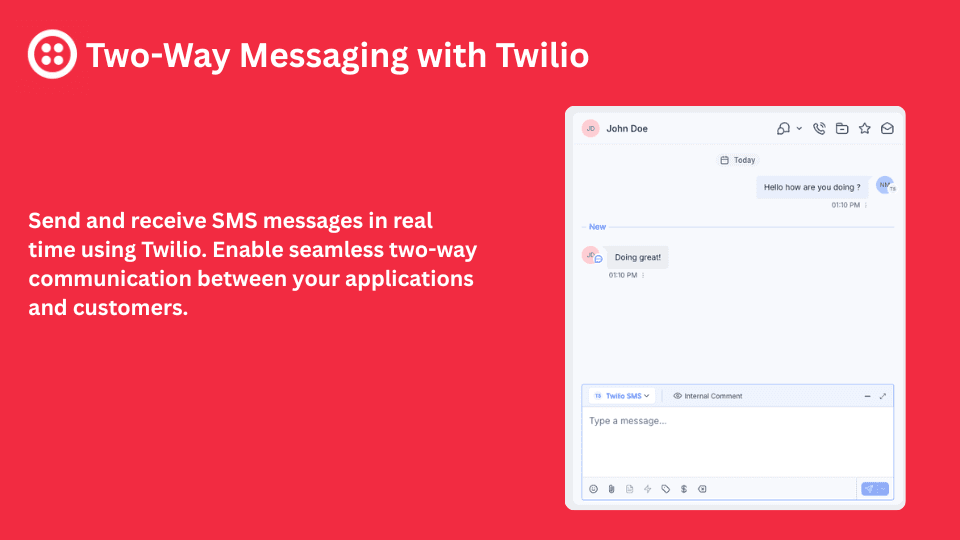
Enable fast, reliable SMS communication with a two-way messaging integration built on Twilio. Send and receive text messages in real time, keep every conversation organized, and automate follow-ups so customers get timely responses at every stage. Workflows can also call contacts with text-to-speech voice messages and validate phone numbers with Twilio Lookup.
Key Features
Everything You Need
Real-Time Two-Way SMS
Send and receive messages using Twilio with real-time delivery and instant notifications for every incoming message.
Dynamic Personalization
Use dynamic fields to personalize SMS content at scale, tailoring each message to the individual contact.
Automated SMS Workflows
Trigger automated workflows to confirm appointments, respond to inquiries, nurture leads, or re-engage contacts without losing conversation context.
Centralized Conversation History
Keep every conversation organized with a complete message history — inbound, outbound, and automated messages in one unified view.
Unified Inbox
Give your team a clear, unified view of all SMS activity, including inbound, outbound, and automated messages in one place.
Improved Customer Engagement
Improve customer engagement through timely, personalized communication that keeps conversations moving forward.
Voice Message Automation
Call contacts from a workflow and read a text-to-speech message aloud using your voice-capable Twilio number.
Phone Number Lookup
Validate contact phone numbers with Twilio Lookup and save the line type, carrier, caller name, and validity to custom fields.
What's New
- Voice Messages — A new Twilio Voice Message workflow action calls a contact and reads a text-to-speech message aloud. Set the From number (a voice-capable Twilio number, or leave it empty to use the location's default), the To number, and the message.
- Phone Number Lookup — A new Phone Number Lookup workflow action validates a contact's phone number with Twilio Lookup and saves the line type, carrier, caller name, and validity to the contact's custom fields. The phone number defaults to the contact's phone.
Ideal For
Sales and support teams needing quick, trackable SMS conversations
Businesses wanting consistent follow-ups and faster response times
Teams looking to personalize messages while maintaining complete message history
Installation Guide
How to Set Up
Please follow the steps below to install the Twilio SMS app:
If you have already installed the app from your GHL account, please uninstall it first.
Go to your Twilio Dashboard and generate a new API Key:
https://console.twilio.com/us1/account/keys-credentials/api-keys- Please save the API Key SID and Secret, as you will need them during setup.
Reinstall the app from the GoHighLevel Marketplace:
Install Twilio SMS on GoHighLevelDuring the onboarding process, you will be prompted to enter your Twilio credentials. Enter the API Key SID and Secret that you generated in Step 2.
After clicking Login, you will be asked to select the phone number you would like to use for sending and receiving SMS messages.
Select your preferred phone number and click Next.
Once the installation is complete, an inbound messaging rule will automatically be added to the selected phone number. To verify this:
- Go to your Twilio Dashboard:https://console.twilio.com/us1/develop/phone-numbers/manage/incoming
- Navigate to Phone Numbers → Manage → Active Numbers.
- Select the phone number you chose during installation.
- Scroll down to the Routing section, where you should see the inbound webhook configuration that was added by the app.
After completing these steps, you should be able to send and receive SMS messages using the app.
If you have any questions or need any assistance, please feel free to reach out to hello@fusionapps.io
Screenshots
See It in Action
Full access. No usage limits. Cancel anytime.
Available on the GoHighLevel Marketplace
Install on GoHighLevel